![Firefly-logo-high-res.png]](https://fireflyreservations.com/hs-fs/hubfs/Firefly-logo-high-res.png?height=50&name=Firefly-logo-high-res.png)
Last Updated: July 14, 2026
Link to Feature: https://app.fireflyreservations.com/units (or click here)
Quick Links
Setup Unit Classes Through Cloning
Overview
Cloning a unit allows you to quickly and easily create a new unit by making a duplicate or copy of an existing unit. Since most properties consist of many similar if not identical units, cloning can save a lot of time. It allows you to enter the property's deposit rules, cancellation rules, taxes, minimum/maximum nights, etc. on a single unit. You then clone that unit as many times as needed to complete your property. You only need to edit a cloned unit's name and number when your units are identical. If your units are similar but not identical, you may edit the description, occupancy, rates, or any setting that needs adjusting.
Cloning is also a great tool to help you ensure consistency across all your units. Even when making a single new unit, cloning helps reduce setup errors. Every setting carried over from a properly configured unit is one less detail you need to worry about making a mistake with.
Here are few examples of how cloning could work for you:
-
Clone a single unit type for set up of initial units or property expansion: If you have 10 standard RV spaces, you will create and set up 1 standard RV unit. Once that first unit is set up to your liking (instructions for setting up a unit here), you then clone that unit to create 9 other standard RV units.
-
Set up multiple unit classes through cloning: A park adding 20 standard RV units and 10 premium units can also use the cloning feature. In this situation, we recommend creating 1 standard RV unit that is cloned 20 times. You will change the unit name and number for 19 of the copies to complete your 20 standard RV spaces. For the 20th cloned copy, you may change the name, number, description, unit class, and rates to create your first premium RV unit. When this premium RV unit is setup completely, it can then be cloned 9 times to create the remaining premium RV units.
- Add a single unit for emergency overflow or expansion: When needing just one more unit for any purpose, you can choose an existing unit to make a single duplicate copy.
Whether you are changing unit name and unit number only or changing a handful of settings on a cloned unit, you save time and hassle by not recreating every unit and every setting from scratch!
Clone a Unit
Create an exact duplicate of an existing unit by creating a clone. Here's how:
- On the main menu, click the Settings dropdown to select Units.
- Click to open the unit you wish to clone.
- In the upper right corner, click the Options dropdown and select Clone Unit.

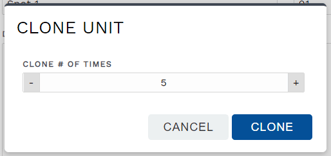
- The Clone Unit dialog opens asking how many times you want to clone the unit. Enter the number of new units to wish to create with a copy of this unit. To create the copies, click Clone. This may take a moment if you have photos added to your original unit.
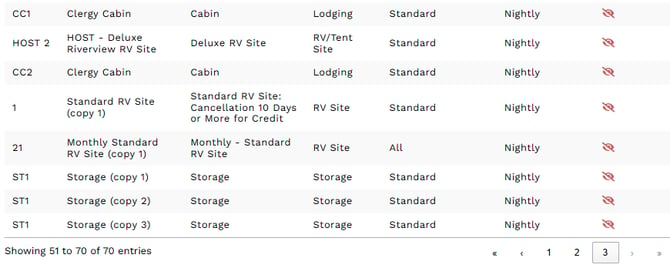
- Once the cloning is complete, you can click Return to all units. You will find your new unit(s) added to the end of your unit list. They are quickly identified with word "copy" in parentheses added to the end of the unit name. The example in this screenshot shows 3 Storage clones, as well as a single clone each for Standard RV Site and Monthly Standard RV Site.
- You can click on each new unit to edit unit settings like unit name, unit number, or unit specific details. But we recommend using the Arrange Units feature, explained in the section below, for faster edits with bulk changes.
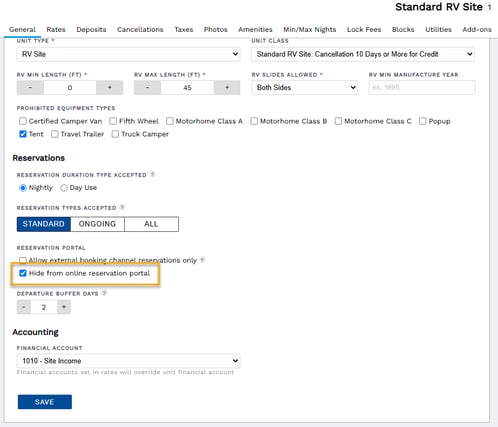
IMPORTANT: If your original unit is not hidden from the reservation portal but your cloned unit(s) will be, you want to quickly edit this setting as soon as your cloning process is complete.
-
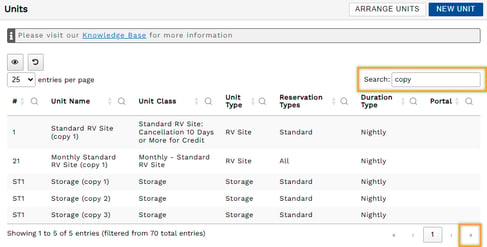
Find your cloned unit(s) at the end of your Units list. You may navigate to the end of the list using the icon with double arrows, or use the Search filter with the word "copy".
-
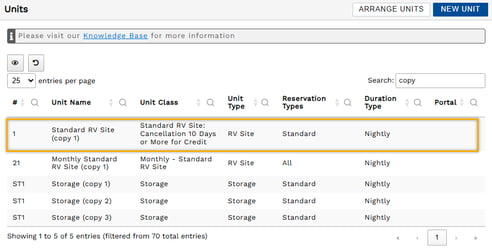
Click on a cloned unit to open it.
-
Check the Options box to "Hide from online reservation portal" then click Save.
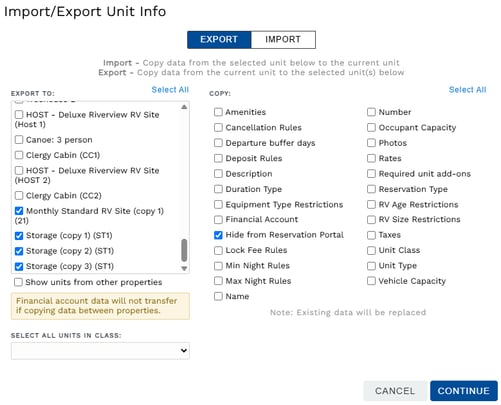
- Use the Import/Export feature to share this change with any other cloned units.
Set Up Unit Classes Through Cloning
If your park has multiple unit classes, say 10 standard RV spaces and 5 deluxe RV spaces, you can clone a standard unit to create a deluxe unit with some quick editing.
-
Clone a standard unit to carry over the property's deposit rules, cancellation rules, taxes, minimum/maximum nights, etc.
-
Edit the cloned standard unit to change the unit name, unit number, unit class, rates, and other details specific to the deluxe unit. This allows you to quickly move through the deluxe unit setup by only changing what is different.
-
Once the desired or necessary changes are made to the deluxe unit, you simply clone this unit 4 times to complete your deluxe unit class.
-
If you have many different unit classes, you may repeat this cloning and editing process as many times as needed.
NOTE: If you make a change to one unit that you want to take effect in other existing units, you can use the Import/Export Unit Settings feature.
Arrange Units After Cloning
To change the order of your units, as you find them displayed when booking a new reservation and on the reservation grid, you will use the Arrange Units feature. This feature allows you to edit the display order all at once on a single page, as well as unit names and unit numbers. For a full walkthrough of these bulk adjustments, see: Quickly update name, number, and order of units.
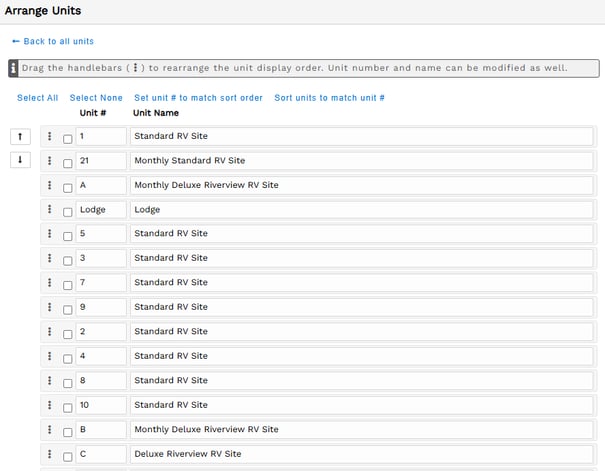 A screenshot of the Arrange Units page.
🙋♀️ Still need help? Email: support@fireflyreservations.com and one of our technicians can help answer your questions.
💭 We would love to know if this article was helpful in addressing your issue. If you could answer the question below it will notify our team. Thank you!